
Download InfoWave Client – Secure Business Tracking Tool, Free Windows & Mac App
Overview
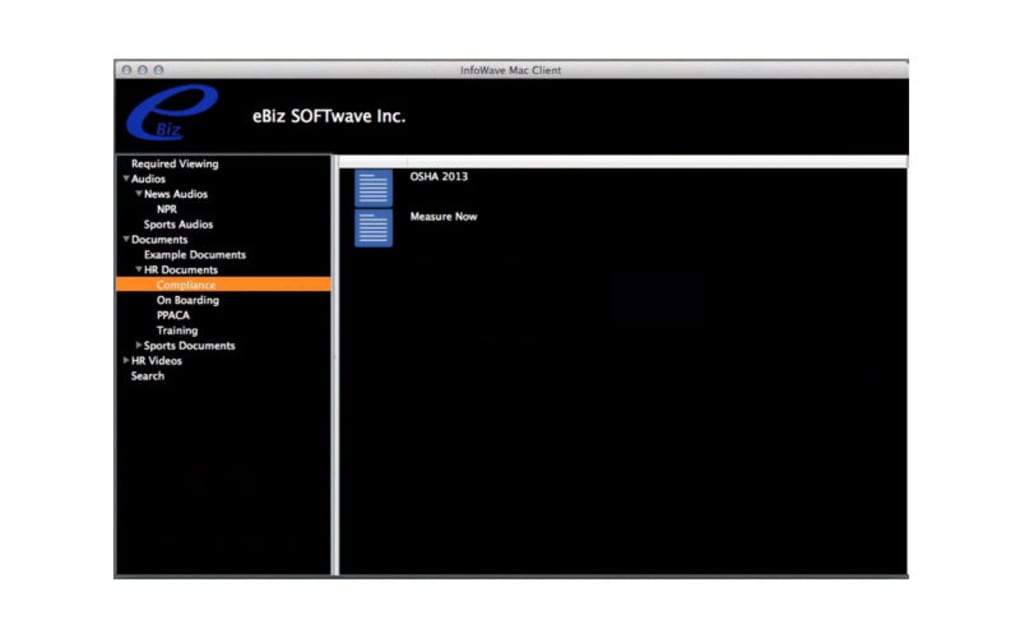
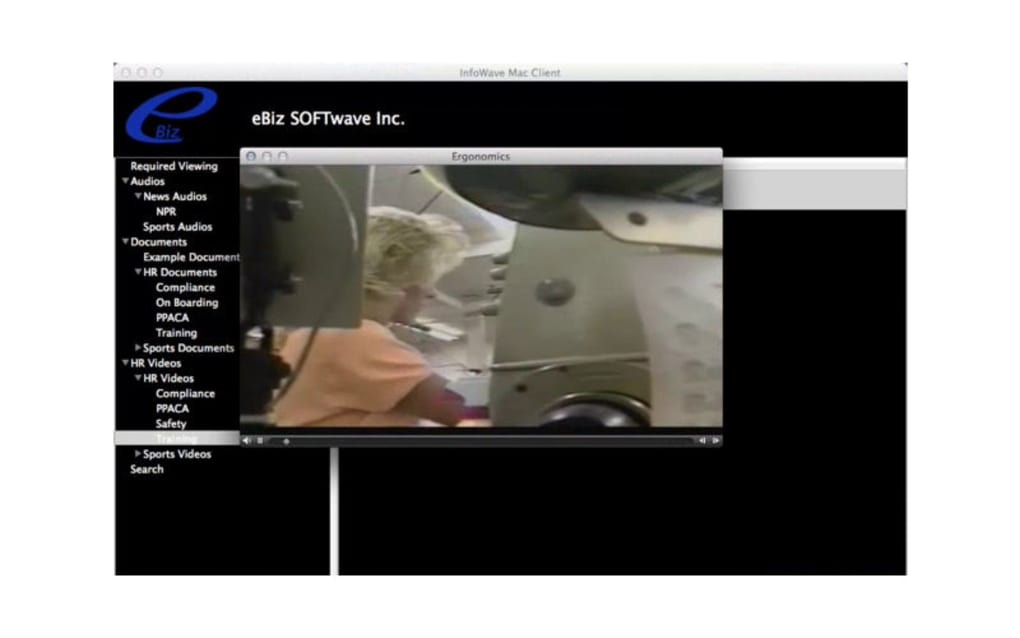
InfoWave Client is a dedicated desktop and mobile gateway that connects employees, managers, and analysts directly to the powerful data‑driven services offered by the InfoWave platform. Designed for businesses that need to juggle large data sets, training manuals, and real‑time performance metrics, the client gives you a single pane of glass to monitor, analyse, and act on critical information. When it works, the app delivers rapid access to multi‑gigabyte databases, intuitive navigation through complex dashboards, and offline‑ready training modules that keep staff up‑to‑date even without an internet connection.
However, users have reported occasional instability, especially when switching between screens or loading heavily populated reports. The crashes typically stem from memory‑intensive operations, but they can often be mitigated by keeping the software updated and ensuring that the underlying hardware meets the recommended specifications. Security is a core focus; all data transfers are encrypted with TLS 1.3, and the client enforces strong credential checks before granting access to any business‑critical resources.
Whether you’re a small boutique firm or a large enterprise, InfoWave Client promises a consolidated view of your operational data, provided you have the correct login details and a stable environment.
Key Features, Compatibility & Installation Guide
Feature List
- High‑capacity data set handling up to 10 TB per project.
- Interactive dashboards with drag‑and‑drop widgets.
- Offline‑ready training manuals and certification quizzes.
- Real‑time alerts for KPI thresholds and data anomalies.
- Role‑based access control integrated with Active Directory.
- One‑click export to CSV, Excel, and PDF formats.
- Customizable reporting templates for recurring analyses.
- Secure TLS 1.3 encryption for all inbound and outbound traffic.
- Automatic background sync that minimizes manual refresh cycles.
- Multi‑language support (English, Spanish, French, German).
Operating System Compatibility
InfoWave Client is built for both Windows 10/11 (64‑bit) and macOS 12 Monterey or later. A limited Android version exists for on‑the‑go reporting, while the iOS companion app focuses on alert notifications and quick data look‑ups. For best performance, the Windows installer recommends a minimum of 8 GB RAM and a solid‑state drive (SSD). macOS users should allocate at least 4 GB of free RAM and ensure they are running on Apple Silicon or Intel processors with 64‑bit support.
Installation & First‑Run Instructions
Downloading the client is straightforward: visit the official InfoWave portal, select the appropriate installer for your OS, and click the Download button. The Windows package is an .exe file, while macOS provides a signed .dmg. After the download completes, follow these steps:
- Run the installer: Double‑click the file and accept the license agreement. The wizard will guide you through selecting an installation directory—default locations are recommended for most users.
- Configure network settings: If your organization uses a proxy, input the proxy address and port when prompted. The client will automatically test the connection.
- Enter credentials: On first launch, you’ll be asked for your InfoWave username, password, and optionally a two‑factor authentication token. These credentials are verified against the central server before any data is loaded.
- Initial sync: The client performs a background sync of your most recent dashboards and training files. This process may take several minutes depending on data size and network speed.
- Customization: Once synced, you can personalize the home screen by adding favorite widgets, setting alert thresholds, and arranging the layout to match your workflow.
Regular updates are delivered through an integrated updater that checks for new versions each time the application starts. Keeping the client up‑to‑date is essential for stability, especially given the reported screen‑loading crashes. If you encounter performance issues, consult the troubleshooting guide on the InfoWave support site, which recommends clearing the local cache, increasing allocated memory, and ensuring your graphics drivers are current.
Pros, Cons, Frequently Asked Questions & Review
Pros & Cons
- Pros
- Robust handling of extremely large data sets without noticeable lag.
- Intuitive, customizable dashboards that cater to both beginners and power users.
- Strong security model with TLS encryption and Active Directory integration.
- Offline training manuals keep staff productive during connectivity outages.
- Cross‑platform availability ensures teams can collaborate regardless of device.
- Cons
- Occasional crashes when loading heavily populated screens, especially on older hardware.
- Initial sync can be time‑consuming for very large datasets.
- Limited mobile functionality compared to the full desktop experience.
- Requires a stable internet connection for real‑time updates; offline mode is read‑only.
- Documentation, while comprehensive, can be overwhelming for new users.
Frequently Asked Questions
Is InfoWave Client free to use?
The client itself can be downloaded and installed at no charge, but it requires an active subscription to the InfoWave service platform. Without a valid subscription, most data‑access features remain disabled.
What should I do if the application crashes while loading a dashboard?
First, ensure you are running the latest version of the client. If the problem persists, clear the local cache from the Settings menu, increase the memory allocation in the advanced options, and verify that your graphics driver is up‑to‑date. Contact InfoWave support with a crash log if the issue continues.
Can I use InfoWave Client on a corporate VPN?
Yes. The client supports proxy and VPN configurations. During the initial setup, you can specify the VPN endpoint and any required authentication tokens, after which all data traffic will be routed securely through the VPN tunnel.
Does the mobile version support offline reporting?
The mobile apps provide read‑only access to previously synced reports. You can view charts and tables offline, but you cannot generate new reports or edit data without an active internet connection.
How secure is the data transmission between the client and InfoWave servers?
All communications are encrypted using TLS 1.3, the latest industry‑standard protocol. Additionally, the client enforces role‑based access control, ensuring users can only retrieve data for which they have explicit permission.
Review Summary: InfoWave Client delivers a powerful suite of data‑management tools that shine in enterprise environments, but its occasional instability makes it a mixed‑bag for smaller teams. Overall rating: 3.5/5.
Conclusion & Call to Action
InfoWave Client stands out as a comprehensive bridge between your business intelligence needs and the vast data repositories that power modern decision‑making. Its ability to handle multi‑terabyte data sets, provide offline training resources, and enforce stringent security protocols makes it a solid choice for organizations that prioritize data integrity and scalability. Nevertheless, the reported screen‑loading crashes and the steep learning curve for new users mean that prospective adopters should allocate time for proper onboarding and system tuning.
If your company already relies on the InfoWave platform, downloading the client is a logical next step to unlock the full potential of real‑time analytics and collaborative reporting. For those still evaluating, consider testing the free installer on a non‑production machine to gauge performance against your hardware baseline. When you’re ready, click the download button below, follow the simple installation guide, and start turning raw data into actionable insights today.







